Hello. I'm the chief developer of Smart tools co.,
Vibration Meter is in the 4th set of Smart Tools collection. It uses your acceleration sensor to measure vibrations or Earthquakes, and shows a reference.
The result is related to Modified Mercalli Intensity scale (MMI). Most embedded acceleration sensors are very unstable. Just use this app as an auxiliary tool.
※ Introduction video
※Effects of MMI earthquake scale
I : Instrumental. Felt by animals
II : Weak. Felt indoors by a few people
III : Slight. Felt indoors by several people
IV: Moderate. Hanging objects swing
V : Rather Strong. Some dishes broken
VI : Strong. Heavy furniture moved
VII : Very Strong. Difficult to stand
VIII : Destructive. Fall of walls
IX : Violent. Noticeable cracks in ground
X : Intense. Almost destroyed
XI : Extreme. Rails bent greatly
XII : Cataclysmic. Total destruction
※ Features
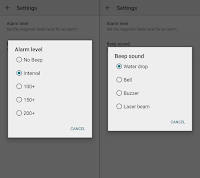
① Alarm sound on / off : you can specify the level at the settings
② Reset : otherwise you can tap the paper for sound effect reduction
③ Line-chart / Reference toggle
④ Brightness toggle : to save battery, make the screen dim.
⑤ Play / Pause
※ Menu
※ How to calibrate
Most acceleration sensors are weakened easily, so that calibration is required once a year.
① Go calibrate menu.
② Shake your device as possible as you can. Increase / decrease its sensitivity so that max value reaches about 10-11.
③ Check for your unnecessary values when there is no movement (Zero-point correction).
④ Click [Cut Baseline] button and select an number.
⑤ Repeat ②-④ several times.
※FAQ
Q. Can the app alert Earthquake?
A. It is possible but I don't recommend it. Within 2-3 days, your device will be heated and the sensor will be damaged.
Q. Though my phone did not move, the app showed 2-3.
A. Most sensors show meaningless data. Please cut off unnecessary value with [cut baseline] option.
Q. How to save the data?
A. It is free version. How about getting pro version? It can export 24 hour data to a CSV file.
Q. What is the unit of vibration?
A. It has no unit, just the scale for reference.
※Pro version added features
1) Sound meter is integrated
2) Screen capture
3) Statistic menu (chart saving, CSV exporting)
4) No ads
※What's New? - v1.6.10 : Support for OS 11
- v1.6 : Line-chart, Sound effect add - v1.5.4 : Alarm on/off icon on app bar
- v1.5.0 : Sound effect
- v1.5 : Material design
- v1.4 : Actionbar, alarm level added
- v1.3 : 12+ languages support
- v1.1 : Calibrate menu with cut baseline
- v1.0 : Vibration Meter released (Nov, 2010) https://play.google.com/store/apps/details?id=kr.sira.vibration
If you have any idea to improve the app, feel free to contact me at androidboy1@gmail.com. Thank you.
After releasing [Smart Ruler] for length measurement, I had to develop an app for angle measurement. This app has 3 protractor modes below (touch, plumb, camera).
※ Introduction video
Ⅰ. Touch mode
Ⅱ. Plumb mode
Ⅲ. Camera mode
※ How to lock the plumb?
In plumb and camera mode, touch anywhere on the screen. The red "Holding..." text will blink.
※ Menu & Settings
※ Orientation sensor ??
Most protractor apps are using only an acceleration sensor. But this way has restriction. When the slop is bigger than 60 degrees, the result can be inaccurate.
I tried to find a good solution with an orientation sensor!! It calculates tilt using both magnetic sensor and acceleration sensor. The result becomes more reliable. I recommend that you turn on the option [Orientation sensor] if possible.
Several custom ROM and devices without a compass sensor cannot activate orientation sensor. Please check the specifications and turn off this option.
※ Pro version additional features:
1) 6 tools (ruler, level, thread) are integrated
2) More Tilt units
3) More languages supported
4) No ads
Hello. I'm android boy, the chief developer of Smart Tools co.,
Although a level is a basic tool, I hadn’t considered releasing one for a long time. That’s because I had already released a protractor app with similar features.
It wasn’t until five years later that I received feedback pointing out that when users want to level a picture frame, they search for a “level,” not a “protractor”—so I rushed to release it.
※ Introduction video
※ Main features
1) Surface level
2) Vertical spirit level
3) Horizontal spirit level
4) Zero calibration
5) Reset calibration
6) Alarm sound on/off
※ Tile units
① Degree (˚)
② Percent (%)
③ Radian (rad)
④ Roof pitch : for US carpenters, 5½/12"
※ Menu & Settings
- Tilt Units, Sound effect, Alarm
- Text size, Text Color, Background color, Ball color
- Show calibration, Orientation sensor
※ How to lock / hold
Tap anywhere on the screen. The "Holding..." message will blink.
※ Alarm on/off
Go to Settings and turn on the [Alarm] option. A speaker icon will appear at the top of the home screen. You can use this to turn the sound on or off.
※ Orientation sensor ??
Most level apps rely solely on the accelerometer. However, this sensor has its limitations. If the incline exceeds 60 degrees, the readings become highly inaccurate. In other words, while it’s great for leveling, it’s not ideal for measuring slopes like those found on inclines.
This level app uses the compass sensor to provide a solution. By adding the compass sensor, slope measurements become very accurate. We recommend keeping this option turned on. If your device lacks a compass sensor or the ball does not move smoothly, please turn this option off.
※ FAQ
Q. The surface level isn't working. A. There is a problem with one of your sensors. First, turn off [Orientation sensor] option at the settings.
Q. I cannot calibrate the level with zero-calibration. A. Click the reset icon (the circular arrow) at the top. You can reset all settings. Go menu > Reset settings.
※Pro version additional features:
1) I includes 6 tools (ruler, 3 protractors and thread).
2) No ads
안녕하세요. 본 수평계앱이 많은 국내 사용자들에게 사랑받고 있어 한국어 설명서를 따로 작성합니다.
수평계은 기본적인 도구이지만, 오랫동안 출시를 고려하지 않았습니다. 이미 기능이 유시한 각도기앱을 출시했기 때문이조. 5년이 지나서야 액자의 수평을 맞출때 [수평계]를 검색하지, 절대 [각도기]를 검색하진 않는다는 충고를 들었고, 급히 출시했습니다. 괜히 고집을 피웠네요 T..T
※ 소개영상
※ 주요기능 1) 평면 2) 세로방향 3) 가로방향 4) 영점보정
5) 보정값 리셋 6) 알람음 켜고 끄기
※ 기울기 단위 ① 도(˚) ② 퍼센트(%) ③ 라디안(rad) ④ 지붕 경사 : 1/12"
※ 메뉴 및 설정 - 기울기단위, 효과음, 알람
- 글자크기, 글자색, 배경색, 공 색깔
- 영점보정 버튼보기, 방위센서, 이용약관
※ 화면을 고정하려면 측정중 화면 아무곳이나 누르고 있으면 "Holding..." 메시지가 깜박이면서 각도가 고정됩니다.
※ 알람 아이콘 상단에 보이기 설정에서 [알람]옵션을 켜세요. 메인화면 상단에 스피커 아이콘이 나타납니다. 이것으로 소리를 켜거나 끌수 있습니다.
※ 방위센서가 왜 필요한가 ?? 대부분의 수평계앱은 가속도센서만 사용합니다. 그런데 이 센서에는 한계가 있습니다. 경사가 60도보다 크면 측정값이 매우 부정확해 집니다. 즉, 0도를 맞추는데는 좋지만 기울기 측정에는 불리합니다.
이 앱에서는 방위센서 옵션을 추가해서, 나침반센서를 같이 사용하는 방식으로 해결했습니다. 이 옵션은 가능한 켜 놓기를 추천합니다. 혹시 구슬이 움직이지 않거나, 자연스럽게 움직이지 않는다면 이 옵션을 꺼 주세요.
※ 자주하는 질문
Q. 수평계가 움직이지 않아요. A. 일부 센서에 문제가 있습니다. 먼저 설정에서 [방위센서]를 꺼 보세요.
Q. 영점보정으로 초기화할 수 없습니다. A. 보정을 반복하면 보정이 안될 수 있습니다. 상단에서 리셋버튼(둥근화살표)를 클릭하세요. 그래도 안되는 경우라면, 메뉴에서 [설정초기화]를 하면 앱을 최초상태로 돌리세요.
※ 프로 버전에 추가된 기능 1) 6개의 도구 (눈금자, 3개의 각도기, 쓰레드)가 통합 2) 광고 없음
Hello. I'm android boy, the chief developer of Smart Tools co.,
Recently, there has been a growing interest in batteries. Do you want to check the condition of your smartphone battery in real time?
The latest smartphones have a settings menu that displays various battery information. However, this isn't enough, and some devices only provide brief information. I thought I could do better, so I released this app. :)
Hello. I'm Android boy, the chief developer of Smart Tools co,.
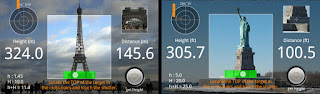
Do you know the height of the Statue of Liberty or Tour Eiffel? How do you know them? Maybe by Googling? Now I'll introduce a new rangefinder app.
Though this photos are manipulated, the app can measure them.
※ Introduction video
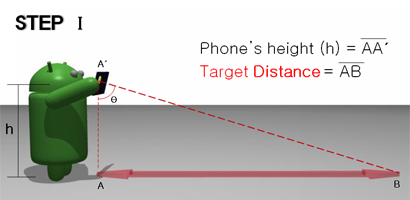
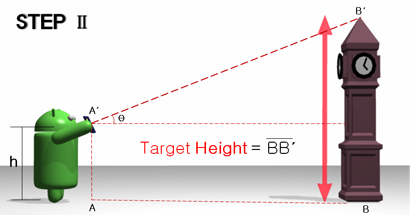
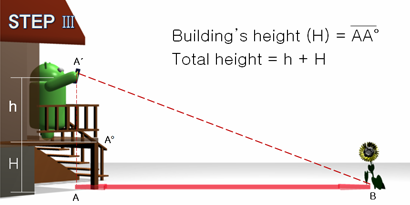
※ Theory of trigonometry
I had heard that some math teachers taught this theory to elementary school students.
※ Checklist Diagram
① Stand up!! Don't sit or lie down.
② Firstly, input phone's height and building height.
Phone's height ≒ your height - 0.3m (1ft), default = 1.5m (4.9ft)
It means the length from ground to camera lens.
③ Calibrate your device. You can make it accurate (~95% accuracy).
④ The result is not perfect, just for reference.
(click to enlarge)
< Russian >
< Spanish >
< Japanese >
※ Manual Calibration
There are 10,000+ android devices in the world. They would show different measurements because of various sensor parts. Therefore, I strongly recommend to calibrate your device with known distance.
If the result is longer than actual distance, reduce by 5% at manual calibration. If shorter, increase by 5%.
※ Calibrate Menu
The app supports auto-calibration menu, too.
After placing the back side of your device against the wall completely, click [Calibrate] button. Do it several times. The menu will find your best calibration.
※ Menu
① Menu
② Manual calibration
③ Height input : it will hide into sub menu.
④ Screen capture
※ Bubble level
The app has a green bubble level for accurate measurement. You can run zero-calibration by longclick. If your device is a tablet and the bubble is at the right edge, sensor settings is wrong. Please let me know model number.
※FAQ
Q. It would not work.
A. Does your device have a magnetic sensor (magnetometer) ?
Q. The result is not correct. A. Please calibrate your device carefully and enter your height (from ground to device).
A. The distance is always "MAX".
Q. Your phone is aiming above the horizon. Please see checklist diagram.
Q. How long can it measure? Effective distance?
A. Normally 1-40m. When you are on a structure, you can measure more.
Q. I want to enter 4 ft 5 in as phone's height.
A. The app supports only decimal. Enter 4.4 ft.
Q. Please add "cm" or "inch" units.
A. The result is not perfect, at least 3-5% off. Smaller units are not efficient.
Q. The height button does not appear.
A. After measuring the distance of a target, the app activates height function.
※Pro version added features
1) Measurement of the Width and the Area
2) Camera Zoom
3) Portrait mode
4) No ads
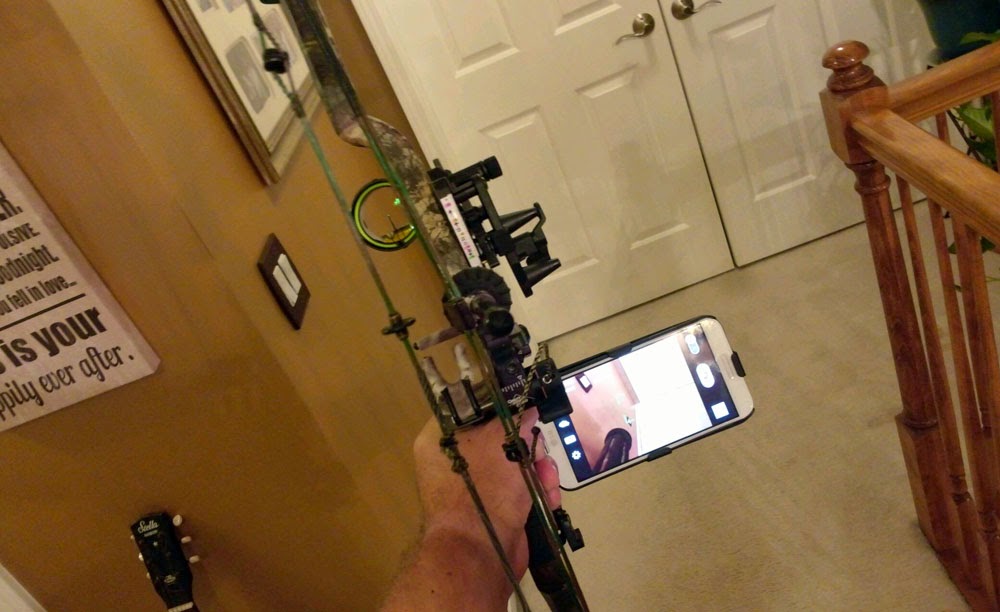
※User's gallery
- For hunting with archery bow
※What's new - v1.8.0 : Support for OS 15
- v1.7.0 : Support for Android OS 10
- v1.6.8 : OS 4.0+ - v1.6.0 : Material design
- v1.6 : Screen capture
- v1.5 : Action Bar
- v1.4 : 10+ languages support
- v1.3 : New icon, tablets support
- v1.2 : App2SD
- v1.0 : Smart Measure released (Nov, 2010) https://play.google.com/store/apps/details?id=kr.sira.measure
If you have any idea to improve the app, feel free to contact me at androidboy1@gmail.com. Thank you.
-----------------------------------------------
The ideas to measure the distance had an International Patents. (Jul, 2010)
Copyright ⓒ 2010-2025 Smart Tools co., All Rights Reserved.
-----------------------------------------------
Hello. I'm Android boy, the lead programmer at Smart Tools co.,
There are countless unit conversion apps on the Google Play Store. However, most of them have poor and complicated user interfaces. Over the past 15 years, I’ve been refining my unit conversion app to make it intuitive and easy to use.
This app cannot include every unit in the world. It displays only common units selected based on user feedback. The list of units displayed varies depending on your country and system language.
※ List of units ① Basic : length (distance), area, weight (mass), volume (capacity) ② Living : exchange rates, temperature, time, speed, shoes, clothing, hat, ring ③ Science : pressure, force, work (energy), power, torque, flow, current, voltage, density, viscosity, concentration, magnetic flux density, astronomy ④ Misc. : cooking, data, fuel efficiency, angle, illuminance, radiation, prefixes, binary (ASCII), time zones, blood sugar, AWG, hardness, numbers
※ How to use 1) Select a category (Basic / Living / Science / Misc.) 2) Select one of the 4 tabs 3) Select a unit by LONG-CLICK on the list or click the selector 4) Tap the number input field, then use the keypad to enter a number.
※ Favorites. You can select up to 4 favorites from the Living, Science and Misc. categories.
Check the checkboxes in your preferred order (①-②-③-④).
- [My currency] is automatically set based on your mobile carrier and system language.
- You can select a region from the list in the app bar: All / Majors / Europe / ...
- Click the refresh icon to receive the latest exchange rates from the servers. - Exchange rates are based on Bank of canada, Fx-exchange, FxexchangeRate, etc. - There may be a delay of 1 to 12 hours. Exchange rates are provided for reference only.
※ Menu & Settings
① Country selection ② Language selection ③ Sound effect on/off
④ My Currency ⑤ Region : Majors, All, Custom, Europe, America, Asia, ...
※ Custom list of currencies ① Select "Custom" from the list at the top, ② Click the (+) button in the bottom right corner. ③ Check the currencies in the order you want.
- You can select up to 10 currencies.
- If nothing is selected, only your currency will be displayed.
※ How to move units. - You can move units in the "Basic" category. - Click the [More (3 dots)] and [Edit] menu to display the move icons for each row. - Select a unit that you want to move, and LONG-CLICK its move icon.
- Drag the floating unit to the desired position and drop it.
- To finish, click the [Back] key or re-select [Edit] menu.
- Changing the country selection in Settings will reset the repositioned units.
※ How to enter fractions. When entering length and weight, there is a [. /] button on the keypad. You can use it to enter fractions.
ex1) 5 1/4 => [5] + [./] + [1] + [./] + [4] ex2) 3/8 = 0 3/8 => [./] + [3] + [./] + [8] (Look out!! 3/8 is less than 1.) or [3] + [./] [./] + [8]
※ How to enter "ft and inch" at the same time Select the "ft in" unit. You can use fractions when entering various values. The same applies to "lb oz".
To save a tab, this app displays both "data storage" and "data flow" on the "Data" tab. It is not an error. By the way, do you know the difference between "kb", "kB", "kib", "kiB", "kbps"?
b : bit B : byte k : kilo (1000) Ki : kibi (1024) M : mega (1000 x 1000) Mi : mebi (1024 x 1024) kbps : kilo bit per second
※ Some units were not found while traveling abroad.
This app displays different units depending on the user's country. It can guess the user's country based on the mobile carrier and system language.
When traveling abroad, a different set of units may be displayed due to international roaming. In this case, please select the appropriate country in the [Country selection] option in Settings.
※ What is the Ad-free menu ? Watch a 30-second reward video to remove all ads for 9 hours. In other words, you’ll get the same experience as the paid version.
Q. How do I copy the result to the clipboard? A. Tap the result twice (Double-tap).
Q. How do I convert grams to liters? A. "gram" is a weight unit, "liter" is a volume unit. These cannot be converted into each other. 1L of water = 1kg, 1L of gasoline = approx. 0.70kg
Q. Where can I find the "A (amp)" unit? A. Click the favorites icon in the Science category. Check the [Current] checkbox.
Q. "kg" is a unit of mass, not weight. A. I know that. weight = mass x gravity. On earth, "mass" and "weight" are the same. Above all, "weight" is a familiar term, and the public does not fully understand "mass".
Q. I need more units such as kHz, MHz, GHz ... A. Why not try using the "Prefix"?
Q. How do I mute video ads?
A. Turn off [sound effect] option at the settings.
※ Pro version additional features:
1) No ads
2) The bottom box for useful information (unit names, formulas, ...)
3) More options at the settings (accuracy, layout, decimal places)
※ Update pending - more style with various colors (Done !)
Hello. I'm android boy, the chief developer of Smart Tools co.,
Many "Smart Compass" users have requested the Qibla function. Recently, while updating the direction function in the Pro version, we decided to release a individual Qibla app for Muslims. If you are a "Smart Compass" user, you can use this app very easily.
Hello. I'm Android Boy, the chief developer of Smart Tools co.,
The pre-loaded calculator app on Galaxy phones is so great that I did not need to create our own. However, some phones, such as Motorola and Infinix, do not have a pre-loaded calculator, and I'm well aware of the limitations of the Galaxy calculator.
We adopted the same design as our existing unit converter. It makes this app intuitive and simple with a familiar interface.
First, we launched this app with two calculator types (Basic, Scientific). Two more tabs are in progress. (money, misc.)
※ Introduction video
※ Calculators ① Basic ② Scientific
※ How to use There's no special usage instructions. Enter a number and an operator, then click the equal (=) button.
To view your usage history, click the history icon (clock) in the center left.
Seven colors are available. Click the More menu (three dots) in the upper right corner. Style(brown, black, gray, blue, green, red and purple)
Smart Tools corporation("We", "Our", "Us") has developed this Privacy Policy to help you understand how we collect, use and protect the information. We encourage you to read this Privacy Policy carefully so that you can make informed decisions about your use of our websites("the webs").
By visiting the webs, you agree to this privacy policy and give an explicit and informed consent to the processing. If you do not agree, please leave the webs.
1. Non-personal Data Non-personal data means information that, by itself, does not personally identify you. We may collect Non-personal data such as your IP address and other properties for purposes of analyzing the webs.
2. Ad serving Technology We may disclose Non-personal data to third parties and/or allow third parties to collect Non-personal data through their own embedded technology. In order to deliver ads to you, the third-party advertising companies may place or recognize unique cookies, anonymous identifiers or similar technology for non-personally identifiable information. If you would like more information, please follow the link below: AdSence - http://policies.google.com/privacy
3. Personal Data Personal data means personally identifiable information that specifically identifies you as an individual (e.g. your name, email address). We collect and store Personal data only with your consent.
4. Third party terms and conditions Please note that your access to the webs may be subject to certain third-party terms and conditions and privacy policies. You recognize and agree that we is not liable for any such third-party terms and conditions and any third party’s use of your Personal data. Here are links to the privacy policies of a few of the distributors we use: Google - http://www.google.com/intl/en/policies/privacy/
5. Disclosure and Transfer of Personal Data We disclose information to respond to subpoenas, court orders and other legal processes as well as to establish/exercise our legal rights or defend against legal claims. We will share Personal data and Non-personal data in order to investigate, prevent or take action against illegal activities, suspected fraud, potential threats to the physical safety of any person, violations of our Terms of Use or as otherwise required by law.
If you have any questions about this Privacy Policy, please contact us at androidboy@naver.com
Smart Tools corporation("We", "Our", "Us") has developed this Privacy Policy to help you understand how we collect, use and protect the information. We encourage you to read this Privacy Policy carefully so that you can make informed decisions about your use of our mobile applications("the apps").
By installing and using the apps, you agree to this privacy policy and give an explicit and informed consent to the processing. If you do not agree, please do not install and use the apps.
1. Non-personal Data Non-personal data means information that, by itself, does not personally identify you. We may collect Non-personal data such as your device model number, operating system version, country code and other properties for purposes of analyzing the apps and communicating with you.
2. Ad serving Technology We may disclose Non-personal data to third parties and/or allow third parties to collect Non-personal data through their own embedded technology. In order to deliver ads to you, the third-party advertising companies may place or recognize unique cookies, anonymous identifiers or similar technology for non-personally identifiable information. If you would like more information, please follow the link below: AdMob - http://policies.google.com/privacy
* How do I change my GDPR choice? If there is a [Reset settings] menu in the app, use it. If not, select [Clear data] from Storage in App Settings.
3. Location Data Some of the apps may request your Location data for a functional purpose. We may use various technologies to determine location, such as GPS, WiFi or other network-based data such as IP address. Your GPS geo-location is not accessed without your consent. We do NOT provide your Location data for any advertising networks and third parties except Google.
4. Personal Data Personal data means personally identifiable information that specifically identifies you as an individual (e.g. your name, email address). We collect and store Personal data only with your consent. We may use your Personal data to send emails to you with informative content about the apps, such as new features and services, special offers, order issues and updated information.
6. Disclosure and Transfer of Personal Data We disclose information to respond to subpoenas, court orders and other legal processes as well as to establish/exercise our legal rights or defend against legal claims. We will share Personal data and Non-personal data in order to investigate, prevent or take action against illegal activities, suspected fraud, potential threats to the physical safety of any person, violations of our Terms of Use or as otherwise required by law.
If you have any questions about this Privacy Policy, please contact us at androidboy@naver.com
Hello. I'm android boy, the chief developer of Smart Tools co.,
As you know, We have a popular unit converter app. The usage rate of currency conversion was high, but it was inconvenient to use due to space limitations.
This app has expanded its functionality after separating the currency section. So it has become more intuitive and simpler with the friendly interface.
※ Introduction video
※ Currency Tabs ① Major currencies : USD, EUR, JPY, GBP, CHF, AUD, CAD ② All currencies : 120+ currencies ③ Favorites : select your own 10 currencies
④ Region : long-click to change the selected region. Europe, Asia, ...
※ Chart Tabs
①-④ 1 month, 3 months, 1 year, 3 years
In the list, major currencies and only currencies registered as favorites can be selected.
※ How to use 1) Select a tab (Major / All / Favorites / Region) 2) Select an unit by LONG-CLICK on the list or click the selector 3) Tap the input box (pencil), enter numbers with the keypad
※ Exchange rates - 122 currencies of 140+ countries, Bitcoin and XAU (gold)
- [My currency] is set automatically depending on your telecom carrier and language.
- When you open the app, the latest exchange rate is automatically loaded.
- The refresh icon can get the live exchange rates from servers. - The exchange rates are based on currencylayer, openexchangerates, exchangerate, etc. - A time delay of 5-10 minutes may occur. The rates are for information purposes only.
※ Menu & Settings
① Sound effect : it can make the sound of video ads mute
② My currency : select your base currency ③ Region : Europe / North America / Asia / ...
④ Layout : 4 types
⑤ Custom list : select your favorites
⑥ Decimal format ⑦ Vibration : vibration on/off on keypad